“Your Photo May Be Too Bright or Too Dark”. How to Fix This IRCC Error?

Getting the “Your photo may be too bright or too dark” warning in the IRCC PR portal can be frustrating, especially when your photo looks perfectly fine. This automated check, commonly seen in PR confirmation portal and Express Entry uploads since 2021, often flags images because of contrast or background balance issues rather than actual lighting problems.
The good news: it’s usually an easy fix and doesn’t always mean you need to retake the photo.
In this guide, we’ll explain why this warning appears, what the official IRCC photo requirements are, how to fix the issue yourself, and why tools like Visafoto can be the fastest way to get a compliant photo without the guesswork.
Table of contents
- What Triggers This IRCC Photo Error?
- Root Causes of the Error
- Official IRCC photo requirements
- Fix your IRCC photo online with Visafoto
- Step-by-Step DIY IRCC Photo Fixes
What Triggers This IRCC Photo Error?
In Canada’s immigration system, the full warning message (“Your photo may be too bright or too dark”) can appear during digital uploads to the IRCC secure portal. It comes from an automated image-checking system that scans brightness and contrast levels, but it sometimes flags perfectly acceptable photos because of minor issues such as dark clothing blending into a light background or uneven contrast.
This has been a common complaint since the PR portal launched, with many applicants reporting that photos flagged by the system were later accepted during manual review. The warning also often appears alongside pixel dimension errors, since IRCC requires photos to be between 1680 × 1200 and 4200 × 3000 pixels.
Root Causes of the Error
Several common issues can trigger this warning in IRCC’s photo checker.
One of the biggest is poor clothing contrast. Dark shirts can blend into light backgrounds, while white or very light tops may disappear against a plain white backdrop.
Lighting problems are another frequent cause. Shadows on the face, glare from overhead lights, or a phone camera automatically overexposing or underexposing the image can all confuse the system.
Other factors that may trigger the warning include long dark hair blending into the background, reflections on glasses, or uneven indoor lighting.
Technical issues also play a role, including incorrect resizing that distorts the aspect ratio, low resolution, or occasional portal processing glitches.
In many cases, the photo itself is not actually “bad.” The issue is that IRCC’s automated screening system is extremely strict because it prioritizes consistent image quality for biometric processing.
Official IRCC photo requirements
Stick to these IRCC rules (from their photo specs PDF) to avoid issues upfront:
- For digital uploads, the IRCC photo size must be between 1680 × 1200 and 4200 × 3000 pixels, in JPEG or PNG format, with a maximum file size of 4 MB.
- The background should be plain white or another light solid color, with clear contrast between your face and the background. Patterns, shadows, or textured surfaces are not allowed.
- You must face the camera directly, with your full face and upper shoulders centered, head straight, and eyes looking at the lens.
- Your expression should be neutral: eyes fully open and clearly visible, mouth closed, and no smiling.
- Lighting must be even across the face, with no shadows, glare, or flash reflections, and skin tones should appear natural.
- The photo must be sharp, clear, and in focus. Both color and black-and-white images are accepted, but the photo must be original and unedited — scanned printed photos are not accepted.
- The photo for the PR card application must also be taken within the last six months and accurately reflect your current appearance.
- For clothing, wear regular everyday attire that contrasts with the background. Avoid very dark or very light clothing if it blends into the backdrop. Hats and uniforms are not allowed unless worn for religious or medical reasons, and glasses are acceptable only if there is no glare and your eyes remain fully visible.
Fix your IRCC photo online with Visafoto
If your photo keeps triggering the “too bright or too dark” warning, the fastest way to fix it is to process the image through Visafoto before uploading it to the IRCC portal.
Visafoto is designed specifically for official document photos, including Canadian Permanent Resident applications.
Using Visafoto is simple:
- Take a photo with your smartphone or camera against any background.
- Upload it to Visafoto.
- Select the Canadian PR photo format.
- Receive a fully adjusted photo that meets IRCC requirements in seconds.
Example of a photo that you could upload to Visafoto:
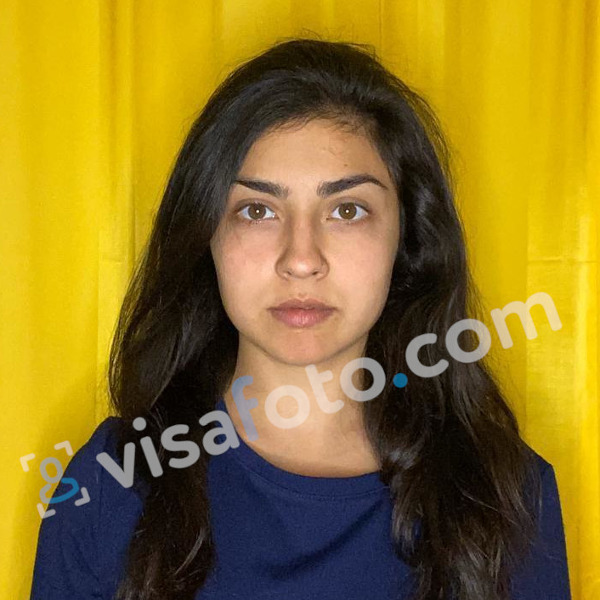
The service does far more than basic cropping. It automatically:
- Sets the correct photo dimensions and head size
- Replaces the background with a compliant light backdrop
- Adjusts image’s quality
- Optimizes framing and positioning
- Corrects technical issues that could trigger IRCC’s automated photo checker
Result from Visafoto:
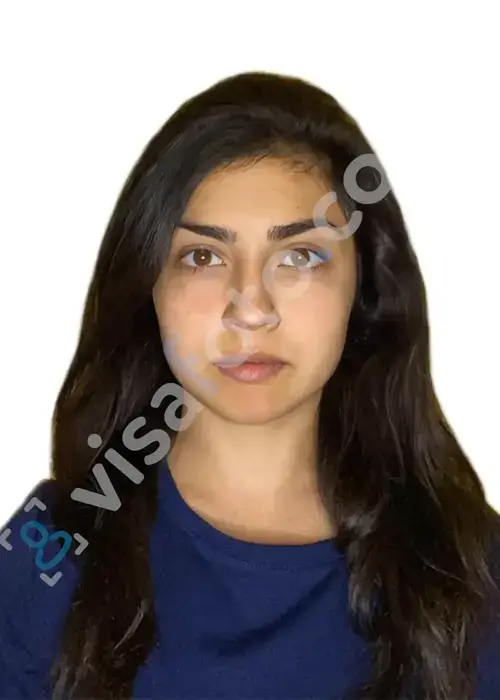
Visafoto also includes an advanced photo enhancement program that improves overall image quality automatically after payment. The system corrects uneven lighting, improves resolution, reduces shadows, and even extends clothing edges when needed to create a more studio-like result. This is especially helpful if your original photo was taken indoors or under less-than-ideal lighting conditions.
Because Canadian immigration uploads are often rejected for subtle technical reasons, this extra optimization can make the difference between instant acceptance and repeated upload errors.
If the IRCC portal still shows a warning after processing your image which is uncommon, simply contact Visafoto’s technical support team. They will review your photo and help adjust it further.
And in the unlikely event that your photo is ultimately rejected by Canadian immigration authorities despite following the instructions, Visafoto offers a 100% money-back guarantee. In practice, this is extremely rare thanks to the platform’s 99.7% acceptance rate and extensive experience with Canadian PR photo requirements.
Step-by-Step DIY IRCC Photo Fixes
Some other steps you can try to avoid the IRCC photo errors:
1. Adjust brightness and contrast manually
You can use free online editing tools to make small corrections before uploading again.
Here’s the basic process:
- Upload your photo to an image editor.
- Increase brightness slightly (usually 10–50% works).
- Adjust shadows and highlights if needed.
- Make sure the aspect ratio stays unchanged while cropping.
- Save the file as JPEG and upload it again.
If you have dark hair or are wearing dark clothing, you may need slightly stronger brightening.
2. Retake the photo with better lighting
If editing doesn’t solve the issue, retaking the photo usually works. For best results, wear medium-toned solid clothing (avoid pure black or white). Stand in front of a plain light-colored wall and use natural daylight from a window. Avoid direct flash. Even lighting across the face is the key factor.
3. Double-check image size and resolution
Before re-uploading, confirm that your file meets IRCC’s digital photo requirements. Make sure it falls within the accepted pixel range and hasn’t been distorted during resizing. Improper resizing is one of the most common causes of portal warnings.
4. Try submitting the photo anyway
The warning is generated by an automated screening system, not a final human decision. In some cases, photos flagged during upload are still accepted later during manual review if they otherwise meet IRCC requirements. So if your photo looks compliant and the warning persists, submitting it may still be worth trying.
That said, if you want the most reliable solution, using Visafoto is still one of the safest options. Unlike manual adjustments, Visafoto is specifically calibrated for Canada’s exact PR photo requirements, including the strict technical standards used by IRCC’s automated screening system. It doesn’t just improve the photo visually, but processes the image according to the precise dimensions, proportions, background, lighting, and formatting rules required for Canadian immigration uploads.